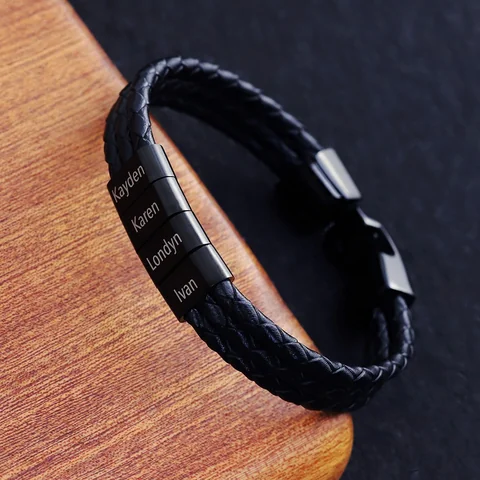
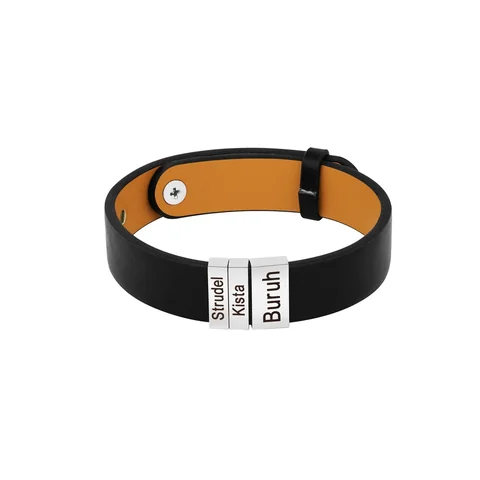
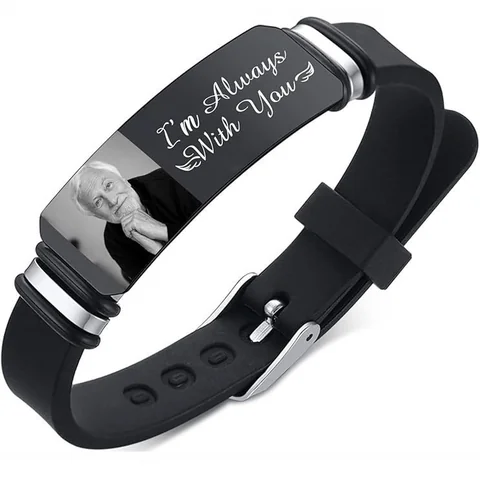
A preview can show your entered content and proposed layout without confirming manufacturing capability or a final physical result.
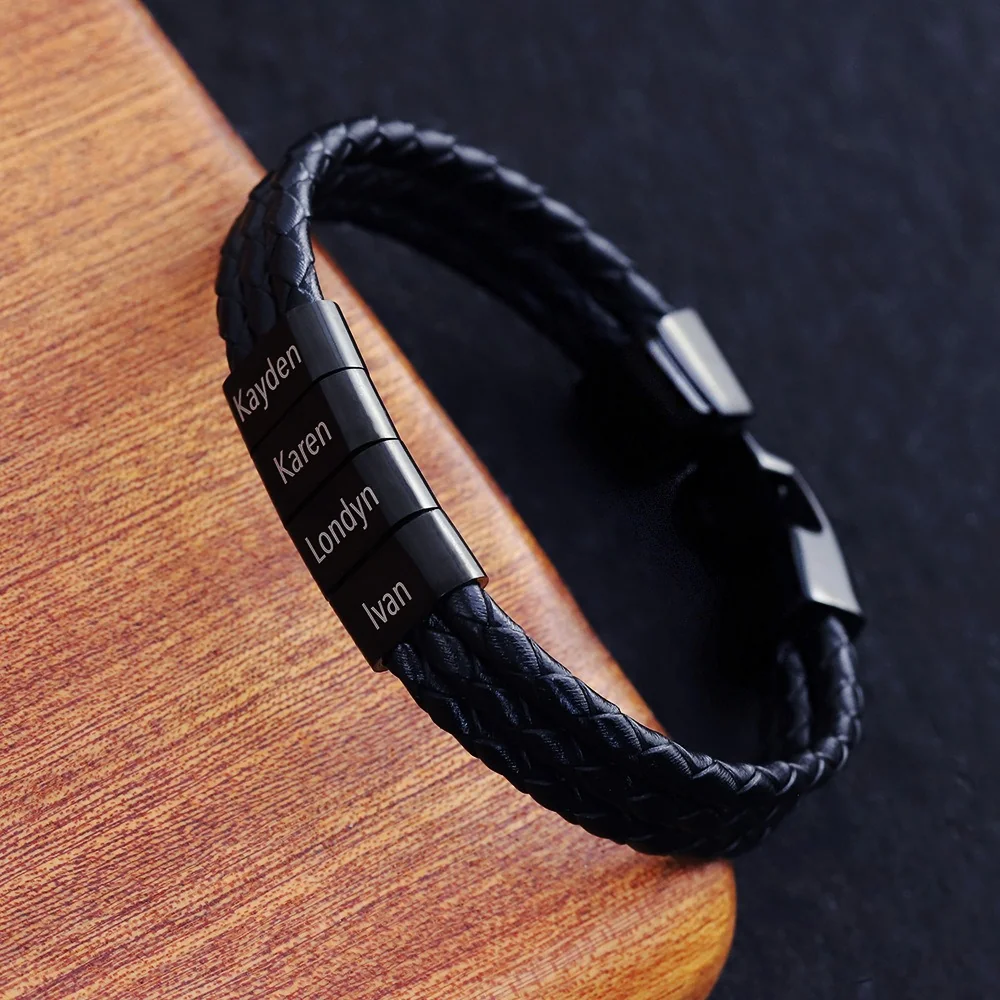
Separate four checks: the typed or uploaded input, the software layout, the manufacturer's approved method, and the actual product option. One check does not clear the others.
The Family Bracelet interface has name controls, but software limits are not factory limits. The Portrait ID needs a method-specific image proof. The Photo & Text Ring primary source shows lettering despite its broader label.
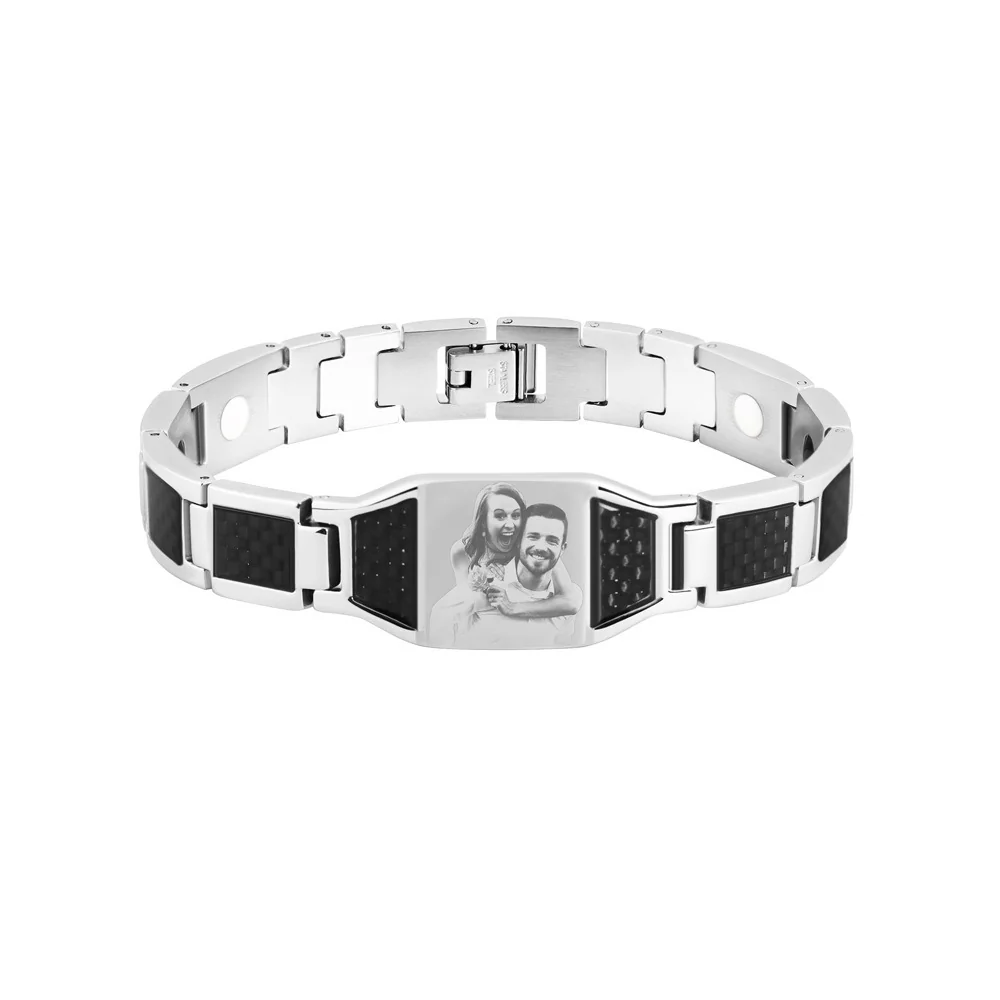
Save the preview version with the exact text and file names. Ask for confirmation of regions, method, and option before treating it as production approval.
If the software accepts unsupported content, leave the brief pending. A realistic-looking image is still a proposed visualization unless its relationship to the manufacturing process is documented.
Give every review step its own outcome
Begin with the input record. For text, check the exact spelling, order, and punctuation you intended. For a photograph, check the correct original file and crop version. This step can reveal an accidental typo or wrong attachment. It does not establish that the content can be made on the selected jewelry region.
Next review the software view. Record what it shows: a proposed text location, crop, or arrangement of name elements. Check whether it represents the saved input correctly. Treat any character or count control as a software behavior unless the selected manufacturing rule has been confirmed separately. Successful rendering answers a visualization question, not all production questions.
Then review the manufacturing evidence. Identify the selected option, supported region, actual method, and relevant limits. If those records are missing, say which field remains unresolved. Finally check purchase status independently. The reference catalog's closed sales state recorded on October 3, 2026 does not change because an input is accepted or a preview appears realistic.
Build a preview checklist that a reader can use
Save the exact input text in a plain copy-ready field and the relevant file names beside it. Record the preview date and version, and note any mismatch between the input and screen view. Keep a screenshot only where appropriate and useful, with enough context to identify the product and selected option. A detached crop can lose that identity.
Ask which statements the preview is meant to demonstrate. A name layout may demonstrate order without demonstrating actual font reproduction. An image crop may demonstrate framing without demonstrating surface method or final color. Write the intended scope in the record so a later reviewer does not assume the software image answered a question it never addressed.
Keep the Family Bracelet's name-input example separate from the Portrait ID's image question. The Photo & Text Ring's broader label and text-oriented primary source need their own capability clarification. Do not use a working control on a name design as evidence that a photo process exists on a different selected option.
Compare an accurate preview with an approved layout
An accurate preview should reflect the saved input and proposed arrangement. A manufacturing-approved layout additionally needs the selected assembly and process relationship confirmed. Ask whether a supplied proof has that status and which version it covers. Do not add the word approved yourself because the image looks finished or the text is centered neatly.
If the preview contains an unsupported region, keep the input correct but mark the region pending. You do not need to discard the intended text merely because the layout is unconfirmed. Separating those outcomes preserves useful preparation while avoiding an accidental claim that the realistic illustration represents something the manufacturer has agreed to produce.
In a fictional editorial example, Erin has a checked portrait file and a software crop that shows both subjects as intended. Erin records the input and visualization checks as complete. The selected product's image method remains unanswered, and ordering is not available through the reference setup. Erin therefore keeps the brief prepared but does not call it a production-approved order.
If a later response confirms the method for a different option, Erin opens a new selected-option record instead of attaching the answer to the earlier preview silently. The image crop may still be useful, but its relationship to the new region needs review. This example describes a record workflow, not a verified photo service or completed customer transaction.
Recheck changes without repeating every completed decision
When the input changes, review the rendered result and any layout confirmation that depends on it. When only the option changes, revisit the manufacturing region and fit fields even if the spelling remains correct. Keep a brief change note naming the affected check. This focuses the review without letting a valid input conceal a changed production question.
Before sharing a summary, read its verbs carefully. Entered, displayed, reviewed, confirmed, and ordered describe different outcomes. Use the verb that matches the evidence. Do not describe a saved preview as an order or a typed name as an accepted manufacturing specification. Clear wording makes the remaining practical step understandable.
Your final checklist should contain the exact inputs, the software-view outcome, the manufacturing-confirmation status, and the independent purchase status. It can show substantial preparation even while a required field is pending. The preview then serves its real purpose: communicating a proposed layout, without replacing method approval, selected-option identity, or a working purchasing route.